[fusion_text]If you have experience with Salesforce Currency and Number fields, you have certainly had the need to customize the number of decimal places displayed. Salesforce does a reasonably good job of handling Currency and Number fields seamlessly for you with a few exceptions related to the precision of the data.
In order to better understand the issues at hand and see it for yourself, follow these instructions to setup test fields and test data in a Salesforce Developer Org or Sandbox:
[code language="javascript"]
trigger OpportunityLineItemTrigger on OpportunityLineItem (before insert, before update) {
if (trigger.isBefore amp;amp;amp;amp; (trigger.isInsert || trigger.isUpdate)) {
for (OpportunityLineItem oli : trigger.new) {
oli.Test_Currency__c = ((oli.UnitPrice*oli.Quantity) * (21.999/100.0));
}
}
}
[/code]
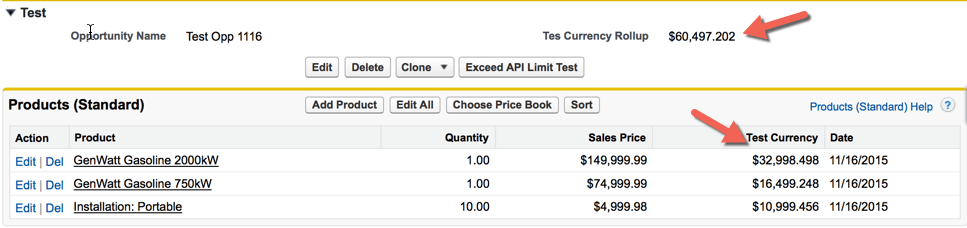
After our OLIs are created and the before insert trigger has fired, we can expect our Opportunity Test Currency rollup summary field to have a value of $60,497.202 (the sum of our above three Test Currency value rounded to 3 decimal places) as is shown below.
It is also easily done by running some Anonymous Apex code as follows:
[code language="javascript"]
Opportunity opp = [select Test_Currency__c from Opportunity where Id='006o000000B2NMuAAN' limit 1];
System.debug('======= opp.Test_Currency__c = ' + opp.Test_Currency__c);
[/code]
Now that we have our test objects and data setup, lets take a look at how changes to a Currency field's decimal place specification can quietly wreck havoc.
Lets say we have an Opportunity Line Item Trigger that calculates an additional value for each Opportunity Line Item, saving it into a custom Currency Field (called Test Currency for our purposes). The field is defined to have decimal place digits as follows:
This field was rolled up into a Rollup Summary field on the Opportunity. Sounds good so far right? So the Trigger calculates a value for this field based on a number of different fields. For simplicity and demonstration purposes, we will only use these two fields in our calculation:
So whenever an OLI is created or updated, the value of our field is recalculated using this calculation inside of our OLI Trigger
[code language="javascript"]
oil.Test_Currency_c=((oli.UnitPrice*oli.Quantity)*(21.999/100.0));
[/code]
Then let's say that we actually only want 2 decimal places for this field. So we modify the definition of the custom field to be 14, 2 (14 digits to the left and 2 to the right) from 15,3. Salesforce warns us “Making this change may cause data loss by truncating values that do not meet the new restrictions." and we say OK which changes the field definition. Now lets see what has happened to our existing records.
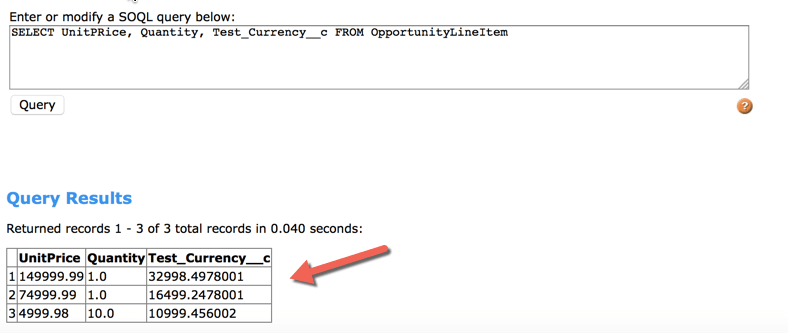
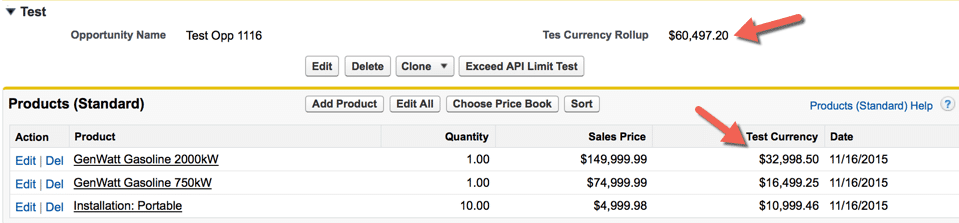
At this point, if I refresh my OLI View Page, I see that the Test Currency value displayed now only shows 2 decimal places the value with the as expected. This makes sense to me. However, looking at the records in the database, I notice that their values have not changed (they are still un-truncated). This also seems OK to me as the database is preserving the precision for you but is only displaying the requested digit to the end-user. Since Salesforce end-users are not likely to be running SOQL queries on the backend, they are not likely to notice the discrepancy.
But what about our Rollup Summary field value - is it still correct? The UI is only displaying the value of the field rounding up or down to the specified of number decimal place digits but the database is storing all the decimal place digits so which values is the Rollup Summary value aggregating since the display and database values are in a different state.
So why did this happen and what can we do to correct it?
By default, Currency fields created in Salesforce have the following properties
In some ways, this behavior makes sense right? The UI takes care of the underlying formatting issues for you (similar to making TimeZone adjustments to DateTime fields). But when you are updating data on a SObject from within Apex, then Salesforce assumes you know what you are doing and leaves the formatting to you. On the other hand, this behavior is very confusing and disconcerting, leaving your data in an inconsistent state.
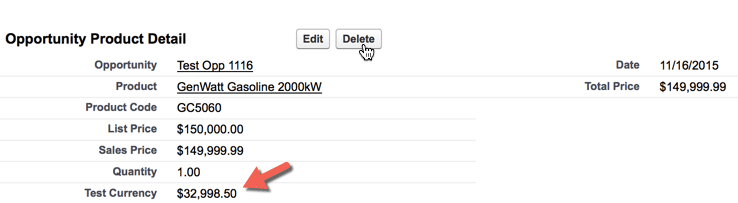
The most confusing part of this is when you have altered the field definition to have less decimal places (ie from 15.3 to 16.2) but you have not yet updated existing data to reflect the new precision. For instance, in our example above, we have an Opportunity Line Item record with a Test Currency field value of $32,998.4978001 (database value). As seen here, it is displayed in the View Page as $32,998.50.
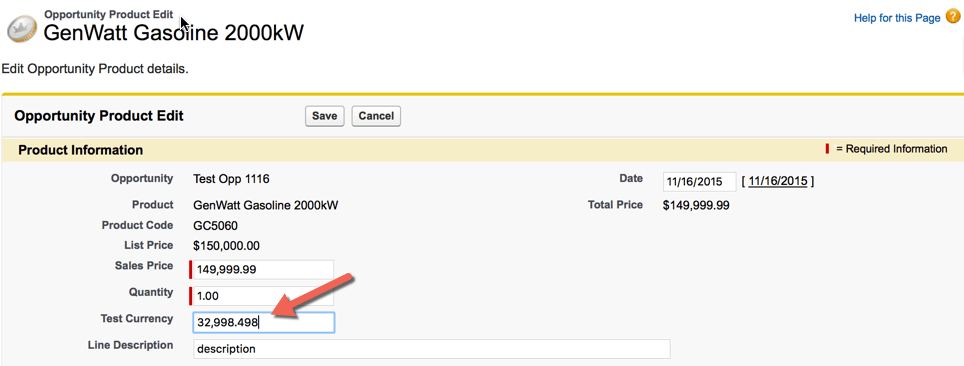
Then it is shown as $32,998.498 in the Edit Page.
Why is this? The records created prior to the field change still have 3 digits to the right of the decimal place UNTIL such time as you update the record, not the field, just the record. In fact, you do not even need to change any fields – all you need to do is open the record up for Edit, hit Save and SF will auto-magically perform its truncation and field will have correct format in the display AND in the database going forward. This is really important as it is confusing. You open the record for edit, and the field shows 3 decimal places, you change a different field and save the record. Next time you go to edit the record, the field shows a different value that was changed without any user interaction or custom code.
Finally – what can you do if you find yourself in the situation described above where the field definition has changed and you have existing records that need to be updated to reflect the new precision. Here are two suggestions, one for the immediate correction of inconsistent data, the other a best practice to minimize discrepancies from the start.
To ensure that this does not happen to you, if you are changing a Currency field definition to have less decimal places, consider doing a bulk data exercise to have Salesforce automatically truncate and round (where necessary) the value of that field on all existing records. If there is special handling you wish to do in terms of truncation and/or rounding rules, then you will need to write an Apex trigger to handle this. Otherwise, there is no need to actually change the Currency field - you just need to apply an update to the record, instructing That will instruct Salesforce to update the record, doing its work behind the scenes. There are several ways to do this depending on the number of records.
To ensure accurate currency values and to prevent discrepancies, you should round Currency values (and Number values where applicable) to your Apex code so its accuracy will match that of the Salesforce UI. NOTE: This does introduce a dependency between your code and the Currency field definition. If and when the field definition is changed to have a different number of decimal places, the code needs to be updated. The simplest way to do this is with the following Apex code:
[code language="javascript"]
oli.Test_Currency__c = oli.Test_Currency__c.setScale(2, RoundingMode.HALF_UP);
[/code]
where
Once this code is in place, the behavior for updating a Currency Field will behave similarly for the UI and Apex code and triggers.
That's it! Hopefully this helped shed some light on Salesforce's behavior when it comes to Currency fields and changing the decimal place definition. Happy Coding![/fusion_text]